# Gaining Access
Devoli use a ticketing system to manage incoming queries from resellers. To gain access to create and view tickets with Devoli, go to our Support Page
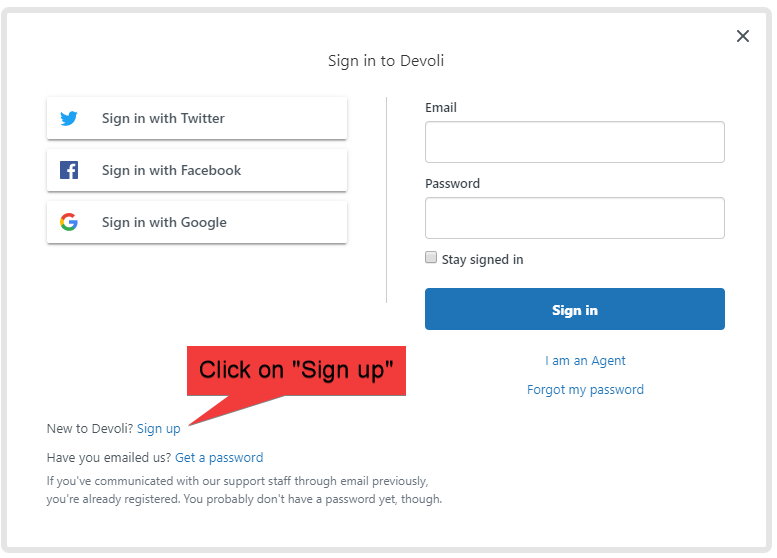
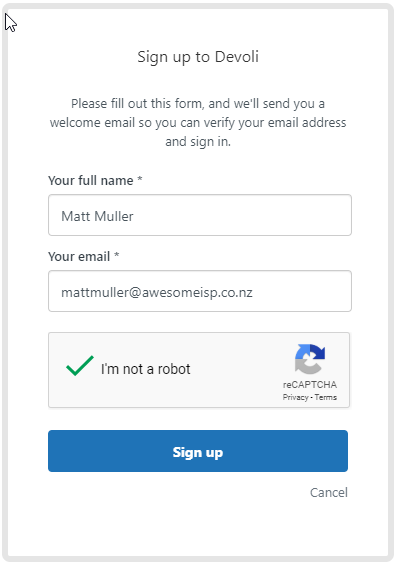
Enter in your full name, email address and tick I am not a robot.
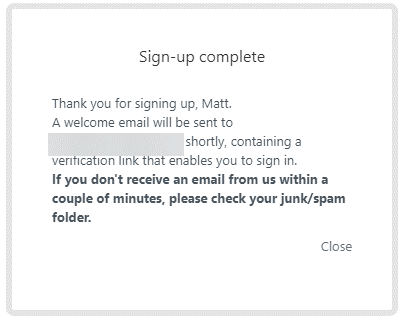
This will be followed by:
Once that is done please go to your inbox of your outlook client and open latest email that should look like below:
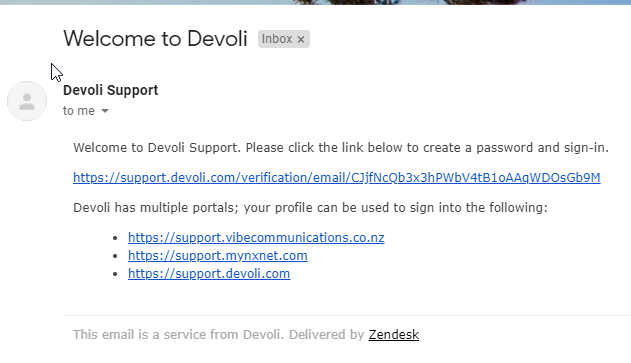
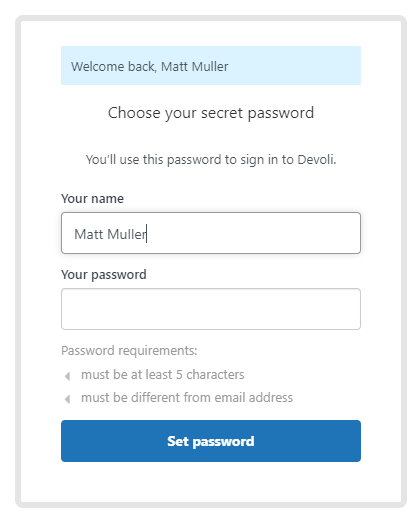
Click on link containing verification. You will then be prompted to enter in your password that you wish to have for your account, and click Set Password.
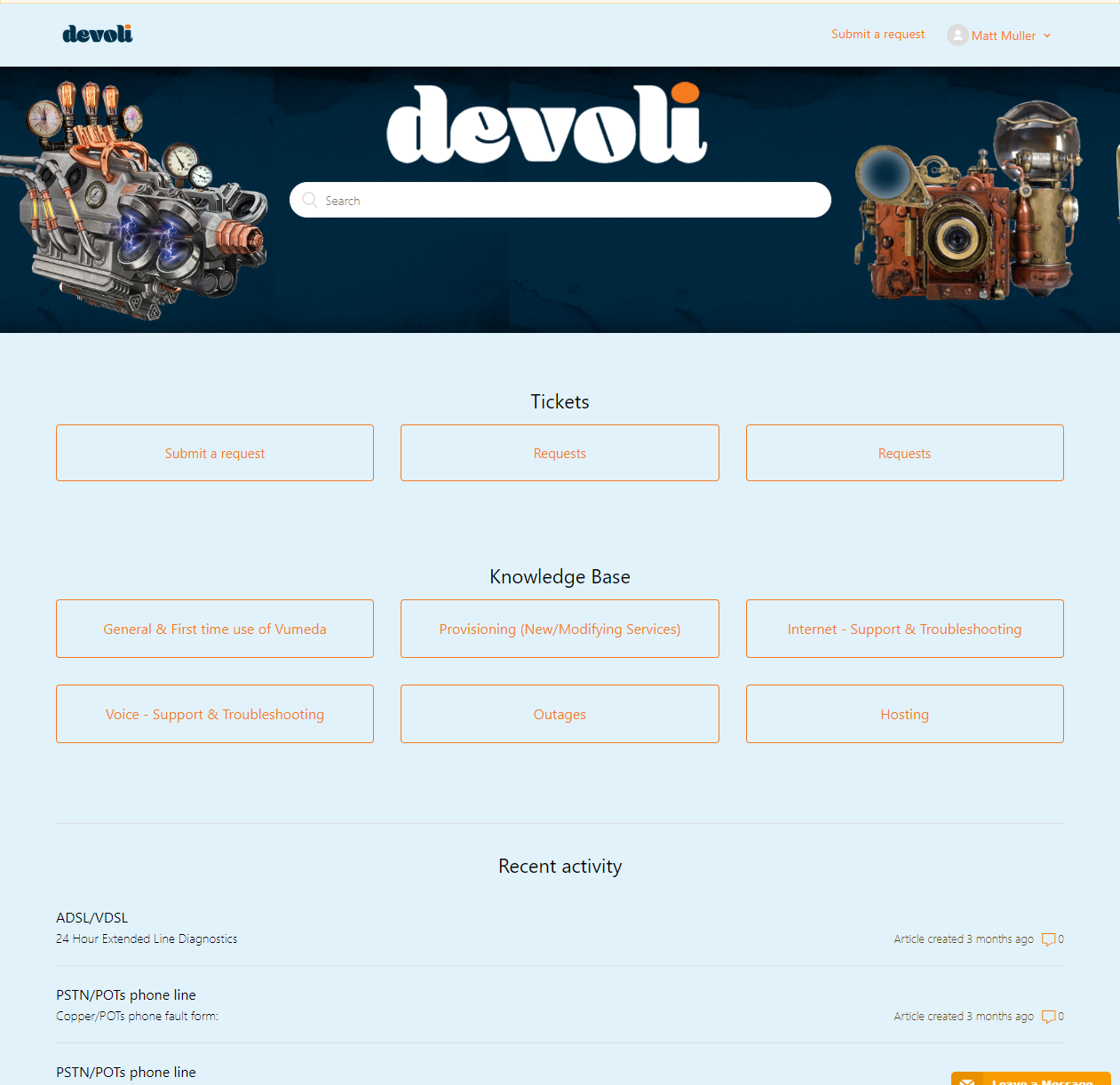
You will then be directed to the Devoli ticket at the Devoli Knowlegebase Page
# Raising a ticket
All queries regarding provisioning, accounts and technical support are to be submitted through the web page. To raise a ticket, use either Submit a request button under Tickets, or Submit a request top right hand corner on the web page above.
Alternately, visit the page directly
# The web form
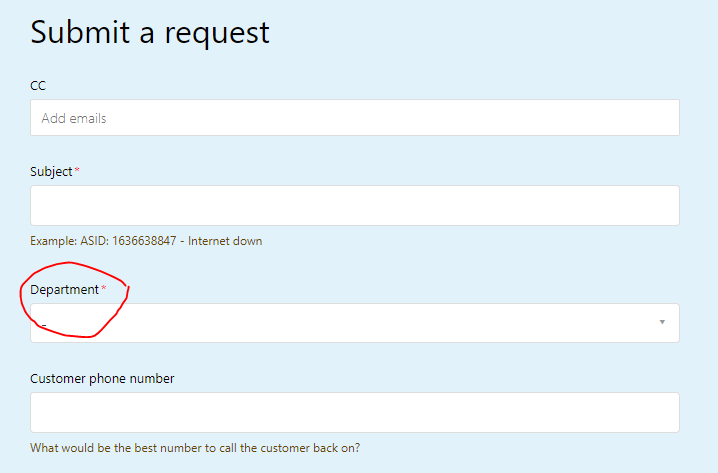
For Provisioning, select department dropdown: Provisioning
For Support, select department dropdown: Support
For Billing, select department dropdown: Accounts
Provisioning deal with all things regarding account set-up, ordering services, managing in-flight orders and interactions with upstream providers. Essentially everything from placing an order up until the point where the connection is completed and should be working.
Support deal with all matters of technical support including troubleshooting services that are connected and should be working and issues with live connections. Accounts are your contact point for questions regarding invoices, billing, credits and anything else to do with the financial side of your accounts.
The form is conditional based, meaning the form changes based on the options selected, prompting for the information we need. For support, select I am a: Wholesaler, unless otherwise instructed by Devoli.
# Upon Submission
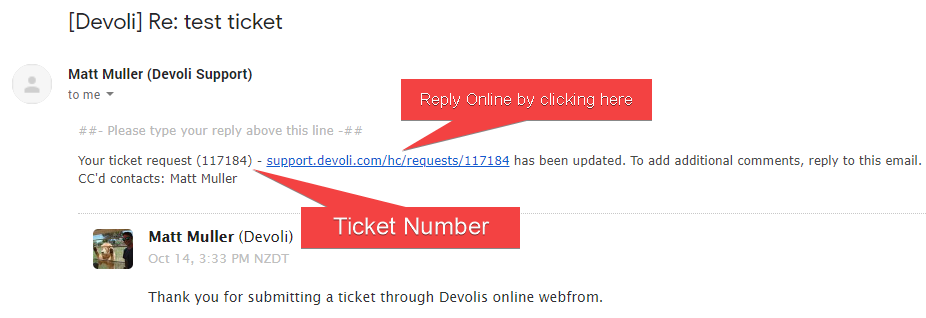
Once submitted, a ticket is sent to the respective department, we will endeavour to reply within 4 working hours. You will receive an automatic email containing the ticket number in the body of the email with the details entered in the ticket:
TIP
This ticket number is your assigned case number.
# Our Reply
Once Devoli staff reply, you will receive an email notification.
If replying online, to continue the conversation please click on the ticket URL. Once submitted on the ticket URL, click on Add to conversation:

Once Devoli staff reply, you will receive an email notification. If replying online, to continue the conversation please click on the ticket URL. Once submitted on the ticket URL, click on Add to conversation:
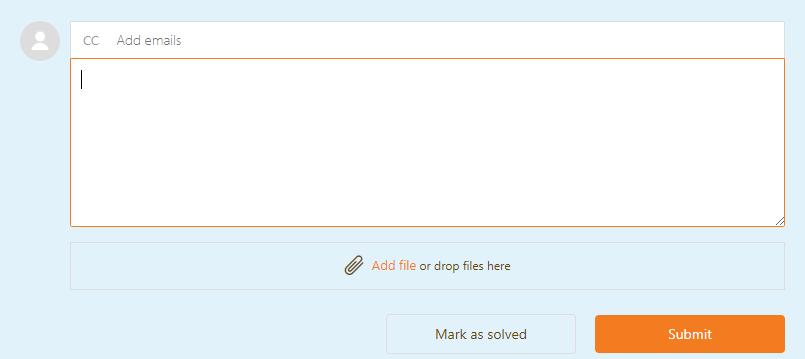
To reply via email, simply hit reply. We recommend you use the online reply to ensure conversations are not get entered into the wrong email trail, or ticket from your email inbox. Also, using online reply ensures attachments and screenshots are included correctly.
# View Requests
To see your current/solved requests from the main Devoli ticket and knowledgebase page, click “Request”. https://support.devoli.com/hc/en-us/requests Ticket status are: • Open: Awaiting Devoli staff member to reply. • Awaiting your reply: The ticket is awaiting your response. You will also receive follow-up reminder emails notifying that Devoli are awaiting your response. • Solved: The ticket is in solved status. Regardless of solved status, you can create a follow up at the bottom of the ticket.
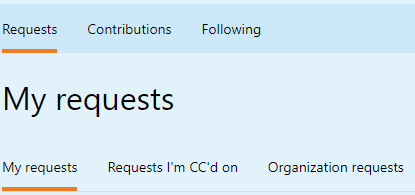
To search for a request or search ticket numbers, enter in search request followed by enter on your keyboard.

# Organisational Requests
Organization requests allow you to view any tickets submitted from email addresses containing your domain name emails with Devoli. For example, if the requester’s login is matt@devoli.co.nz and Matt has permission to view organization requests, then Matt can view anyone within Vibe Communication’s email addresses who interacts with Devoli. This is based on the domain conversations.
If Matt sent a ticket in via email from his Gmail address, then the ticket would not show in organizational requests.
To see your Open or Awaiting your reply or Solved organization’s requests, Devoli staff will need to allow your account to view your organization’s requests. Please have your company admin or managing authority Submit a request, under support –> General enquiry, requesting Please allow my account to view organizations requests, and in the description enter if you would like all staff to view organizational requests, or enter the email addresses you would like to have organizational access.
Once approved, from the main Devoli ticket and knowledgebase page, go Request -> Organization requests.

# Knowledgebase
Knowledgebase articles, go to: https://support.devoli.com/hc/en-us select the category you are seeking information on.
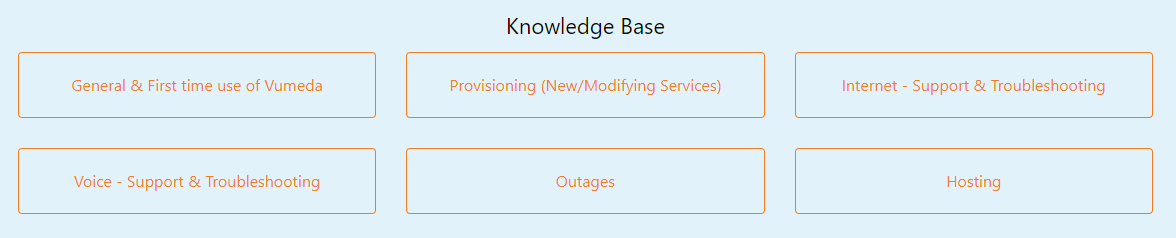
Or alternatively enter in search field:

Articles here explain how to use Vumeda to provision and support your customer, along with Devoli product offerings. If there are any articles that we can add, please let us know through submitting a request and select Support -> Portal help.
# Phone Support
Once a ticket has been created, you are welcome to call us during Devoli business hours.
Devoli business hours: Monday to Friday 8 am to 5 pm NZST- excluding NZ public holidays.
Business as usual line:
- New Zealand: 0800 Devoli (0800 338 654)
- Australia: 1800 940 604
Press option:
- 1 for Technical support
- 2 for Provisioning
- 3 for Accounts.
# After Hours Support
Devoli offers after hours support. If you call the Devoli line after 5pm you will be re-routed to an after-hours message. Options are,
- To speak to engineer or leave a message for support,
- Leave a message for provisioning,
- Leave a message for accounts.
The Devoli team reviews voicemail on the next business day.
Once you have pressed 1 for support, you will be given an option to either speak with an engineer, or leave a message for support; the voicemail will be actioned on the next business day.
If you wish to speak to an engineer, please ensure you have already logged a ticket either through an online ticket
Alternatively you can contact us through support@devoli.com prior to calling and have the ticket number handy to quote.
After Hours Support is a paid service. You will be charged $185 per hour +GST for engineer’s time.